Certificates
Overview
WPA-Enterprise needs TLS, and TLS needs certificates. The Certificates page runs a small certificate authority (CA) inside Tala WTE: you initialize one root CA, then issue the server certificate that FreeRADIUS presents during the EAP exchange and, for EAP-TLS, a per-user client certificate.
When to use this page: only when you are running a WPA2-Enterprise / WPA3-Enterprise (802.1X) network. Open networks, captive-portal networks, and WPA2/WPA3-Personal (PSK) networks do not use certificates at all. And even for an enterprise network you usually do not have to come here by hand, because Auto-provision & Start on the network's preflight gate builds the CA and the server certificate for you (covered at the end of this guide). You come here deliberately when you want to issue client certificates for an EAP-TLS lesson, or to inspect what has already been issued.
The page is reached from the sidebar under ENTERPRISE > Certificates.
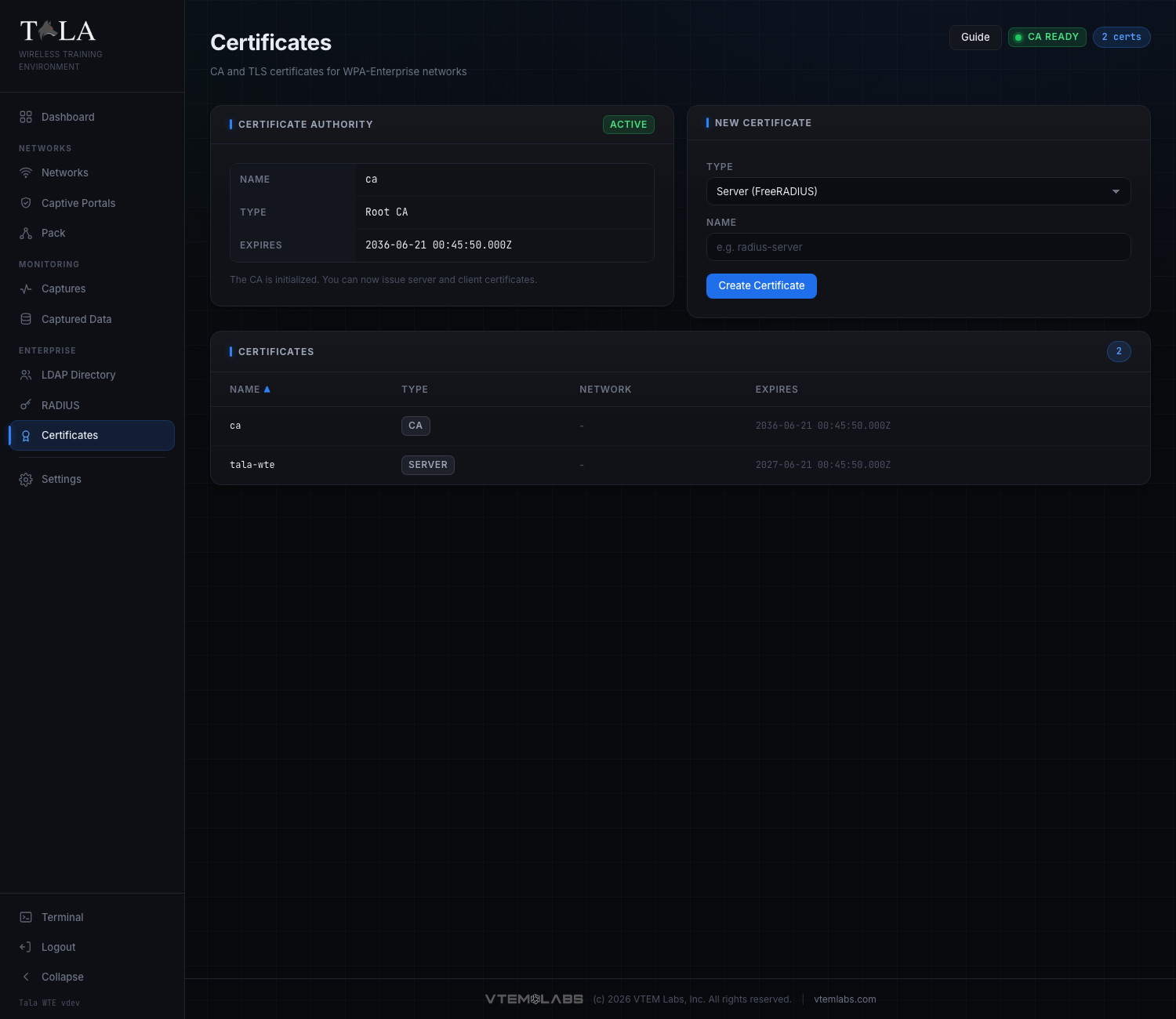
The header carries three pieces of state you will refer to throughout:
- A Guide button (opens the in-app guide in a modal).
- A status badge that reads CA Ready (green dot) once a CA exists, or No CA (grey dot) until you initialize one.
- A count pill showing how many certificates exist (for example "2 certs", or "1 cert" in the singular).
Below the header the page is laid out as three areas: the Certificate Authority panel (top left), the New Certificate panel (top right), and the Certificates table (full width, beneath them).
The order matters
There is one correct sequence, because each step signs the next:
- Initialize the CA (the root that signs everything else).
- Issue a Server (FreeRADIUS) certificate.
- (EAP-TLS only) Issue one Client certificate per user.
For a password-based PEAP lab you only need steps 1 and 2. The Create Certificate button stays clickable even before a CA exists, but the operation fails until there is a CA to sign new certificates with, so always initialize the CA first.
Step 1: Initialize the Certificate Authority
Before any CA exists, the Certificate Authority panel shows a Required badge and a short instruction: "Initialize a Certificate Authority before issuing server or client certificates for WPA-Enterprise." Under that is a single Initialize CA button.
Click Initialize CA. While it works the button changes to "Initializing..." and is disabled so you cannot double-submit.
This creates a 10-year root CA with the subject O=Tala WTE, CN=Tala WTE CA (a 4096-bit RSA key). There is nothing to configure: there is exactly one CA per box and it is generated with fixed, sane defaults.
Once it succeeds, the same panel flips to show an Active badge and the CA's details.
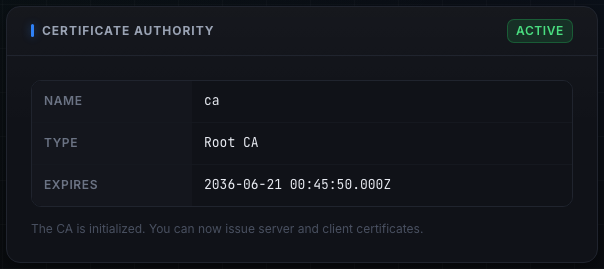
The Active panel shows:
- Name: the CA's name (shown as
ca). - Type: Root CA.
- Expires: the expiry timestamp, roughly ten years out (for example
2036-06-21 00:45:50.000Z).
A line beneath confirms: "The CA is initialized. You can now issue server and client certificates." At the same moment the page header badge switches from No CA to CA Ready.
You only ever do this once per box. If the panel already shows Active, skip to Step 2.
Step 2: Issue the server certificate
The server certificate is what FreeRADIUS presents to clients during the EAP TLS handshake. Without it the EAP tunnel cannot form, so this certificate is required for every WPA-Enterprise network regardless of which EAP method you use.
Work in the New Certificate panel.
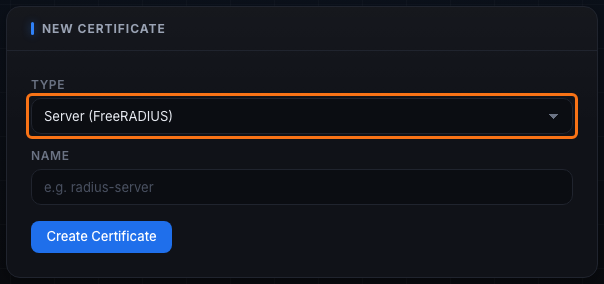
- Set the Type dropdown to Server (FreeRADIUS). This is the default selection when the page loads. The dropdown has only two choices: Server (FreeRADIUS) and Client (EAP-TLS).
- Enter a Name. The field placeholder suggests
radius-server. Pick a short, recognizable name; this is the certificate's filename and label, not a hostname you have to match anywhere. - Click Create Certificate. The button reads "Creating..." and is disabled while it works. It is also disabled until you have typed something into the Name field.
The new certificate is signed by your CA and is valid for one year. After it succeeds the Name field clears and the new row appears in the Certificates table below.
When to issue more than one server certificate: you normally need exactly one. A single radius-server certificate serves every enterprise network on the box, so there is rarely a reason to create a second.
Step 3 (EAP-TLS only): Issue client certificates
A client certificate is a per-user credential for certificate-based authentication. Issue these only when the lesson is specifically EAP-TLS. A password-based PEAP or TTLS lab authenticates against directory passwords and does not need client certificates at all; issuing them there is wasted effort. See RADIUS 802.1X for how to choose between EAP-TLS and the password-based EAP methods.
In the New Certificate panel:
- Set the Type dropdown to Client (EAP-TLS). The Name field is replaced by a User UID field.
SCREENSHOT NEEDED: The New Certificate panel with the Type dropdown set to Client (EAP-TLS), showing the User UID field (placeholder "e.g. jdoe") in place of the Name field, on the Certificates page.
- Enter the user's UID. The placeholder suggests
jdoe. This should match the directory user the certificate belongs to (see LDAP Directory). - Click Create Certificate.
The certificate is signed by your CA with a common name of <uid>-client, so a UID of jdoe produces the CN jdoe-client. Like the server certificate it is valid for one year. Issue one client certificate per user who will authenticate with EAP-TLS.
Step 4: Review the Certificates table
Every certificate the box has, of any type, is listed in the Certificates table at the bottom of the page. The panel header carries a count pill matching the total.

The table has four columns:
- Name: the certificate name, shown in monospace.
- Type: a badge reading
ca,server, orclient. - Network: the network this certificate is associated with, or a dash (
-) if it is not bound to a specific network. - Expires: the parsed expiry timestamp (the CA shows its ten-year date; server and client certificates show one year out).
Sorting: click any column header to sort by it. Click the same header again to flip the direction; an up or down arrow next to the header label shows which column and direction is active. The default sort is by Name, ascending.
This table is not a stale database record. Tala WTE reads the actual certificate files on disk in the PKI directory, parses their real expiry dates, and reconciles the list on every load, so the page always reflects what is genuinely installed.
States you may see:
- While loading, the table area reads "Loading...".
- With no certificates yet, an empty state reads "No certificates yet" with the note "Initialize a Certificate Authority to start issuing server and client certificates."
- If any operation fails, a red error banner appears near the top of the page with the failure message and a dismiss (x) control.
How EAP-TLS consumes these certificates
The certificates here are not decorative; they are the trust chain that 802.1X authentication runs on:
- The CA is the root of trust. It signs the server certificate and every client certificate, which is what lets each side verify the other.
- The server certificate is loaded into FreeRADIUS. When a client begins WPA-Enterprise authentication, the EAP exchange builds a TLS tunnel and FreeRADIUS presents this certificate to prove its identity. This happens for every EAP method (PEAP, TTLS, and TLS), which is why the server certificate is always required.
- For PEAP / TTLS the tunnel is then used to carry the user's directory username and password, validated by RADIUS against the directory. No client certificate is involved.
- For EAP-TLS there is no password step. Instead the client presents its own certificate (the
<uid>-clientcertificate you issued in Step 3), and FreeRADIUS verifies it was signed by the CA. Mutual certificate authentication is the whole point of EAP-TLS, so the per-user client certificate is mandatory there.
See RADIUS 802.1X for the FreeRADIUS side of this (the EAP configuration and the CA / server certificate chain), and Networks for building and starting the enterprise network that uses them.
You usually do not do this by hand
For a typical enterprise network you rarely visit this page at all. On a WPA-Enterprise network's Start, the preflight gate offers Auto-provision & Start (see Networks). That one action:
- Creates the CA if it does not already exist.
- Issues the
radius-serverserver certificate. - Installs both into FreeRADIUS.
- Provisions the directory and configures RADIUS.
The result is identical to doing Steps 1 and 2 here by hand, in a single click. You then only come to the Certificates page when you need to issue client certificates for an EAP-TLS lesson, or to inspect what has been issued.
Tips and judgment
- Follow the order: CA, then server certificate, then optional client certificates. Nothing can be issued before the CA exists.
- For a password-based PEAP / TTLS lab you only need the CA and a server certificate. Do not issue client certificates.
- Let Auto-provision & Start handle the CA and server certificate on your first enterprise network. It is the same result with less effort.
- Issue client certificates only for EAP-TLS, one per user, named with that user's directory UID.
- You need only one server certificate for the whole box; it serves every enterprise network.
- The table reflects what is actually on disk, so trust the Expires dates it shows when planning a long-running lab. Server and client certificates are good for one year; the CA for ten.
Related guides
- RADIUS 802.1X - the FreeRADIUS server, EAP methods, and the certificate chain it loads.
- Networks - building and starting WPA-Enterprise networks, and Auto-provision & Start.
- LDAP Directory - the directory users that PEAP / TTLS authenticate against and that client-certificate UIDs map to.