Troubleshooting
Common symptoms with their root cause and the verified fix, grouped by where they bite.
Overview
Scan for your symptom, read the likely cause, apply the fix. Everything here is verified against how Tala WTE actually behaves. See also Settings, The Pack, and Installation.
Console and login
The console will not load / I get a certificate warning
- Likely cause: the console is served over HTTPS on port 8443 with a self-signed certificate the binary generates for itself. Browsers do not trust a self-signed cert and warn before letting you through.
- Fix: open
https://<host>:8443/(note HTTPS, not HTTP; port 80 only redirects to 8443) and accept the warning to proceed. This is expected for a lab appliance. If nothing answers at all, confirm the service is running withsystemctl status tala-wteand that you are on the same network as the box.
I cannot reach the console by name
- Likely cause: the host's DHCP address changed, or mDNS name resolution is not working from your machine.
- Fix: reach it by IP,
https://<ip>:8443/. From a pack leader, the Pack page's Discovered on LAN -> Scan finds Tala WTE instances over mDNS and shows their current addresses.
I cannot create the admin account
- Likely cause: on a fresh install the setup wizard appears at
https://<host>:8443/. If you see the normal sign-in instead, an admin account already exists for this instance. Tala WTE never auto-provisions an admin and never prints credentials. - Fix: from the wizard, set an admin email and a password of at least 10 characters, acknowledge the license, and create the account. Setup is one-shot: once the admin exists, the setup screen becomes a normal sign-in. To start over with a fresh setup screen, see Starting over below.
Starting a network
A network will not start: no free adapter
- Likely cause: every AP-capable adapter is already claimed by a running network. A running network moves its radio into its own namespace, so it disappears from the free-adapter list; one adapter hosts one network at a time.
- Fix: stop another network to free its adapter, or add another adapter. If the adapter you saved the network with is simply gone (unplugged or renamed), Tala WTE auto-claims the best free real adapter for you (and falls back to a band that adapter supports). Starting from the network's Details page instead pops a confirm dialog (the radio swap prompt) proposing a specific free adapter, and a band change if needed, for you to approve rather than picking silently.
A network will not start: 5 GHz or 6 GHz network will not broadcast
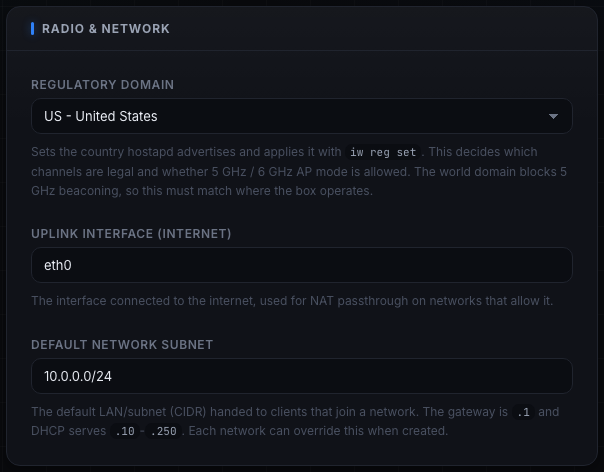
- Likely cause: the regulatory domain forbids it. The default world domain ("00") cannot beacon 5 GHz, so a wrong or unset country stops 5 GHz access points from coming up.
- Fix: set the correct country under Settings -> Regulatory Domain (applied live with
iw reg set). This is the usual reason a 5 GHz network will not start. Only set a domain you are authorized to transmit in.
A network will not start: the band is not allowed on this adapter
- Likely cause: the chosen band is one the adapter cannot host as an access point (for example, an MT7921 card cannot beacon a 6 GHz AP even though it can join 6 GHz as a client).
- Fix: pick a band the adapter can host. The new-network form only offers bands the adapter can actually beacon and will fall back to a hostable band; if you forced a band it cannot do, start fails with a clear error. Choose a supported band or use a different adapter.
A network errors out on a DFS channel
- Likely cause: 5 GHz DFS channels require a radar-clearance period and can be blocked or delayed; hostapd may fail to take the channel. DFS channels are marked in the channel picker.
- Fix: pick a non-DFS channel for the band, or confirm your regulatory domain permits that channel. If hostapd reported a frequency/channel/busy failure the network is marked error; change the channel and start again.
A network stuck or dirty after a previous run
- Likely cause: a prior run left the radio in a non-managed mode (for example stuck in AP mode), or stale namespaces and veths remain.
- Fix: on start, Tala WTE heals a dirty radio (USB rebind) and cleans up stale resources for that network ID before bringing it up, so a retry usually works. As a last resort, stopping the network runs a full teardown. Avoid running Tala WTE CLI subcommands while the service is up: doing so triggers a full teardown on exit that stops all running networks.
Wireless adapters
An adapter shows Unsupported
- Likely cause: the USB device is present but has no working radio (no ieee80211 phy), because its driver or firmware is not loaded. Tala WTE flags this both during installation and in the app.
- Fix: it depends on the device:
- Recognized chipset: the driver and firmware are present and it simply did not initialize (common on USB-passthrough VMs). Replug the adapter, or use the Heal button in Settings, which performs a USB reset to force a clean re-probe and firmware reload.
- Unrecognized device: install the driver and firmware for that adapter, then it will come up.
Heal does not recover the adapter (in a VM)
- Likely cause: on a USB-passthrough VM, the virtual xHCI is provided by the hypervisor, so a software USB reset cannot recover the device.
- Fix: physically replug the adapter, or detach and re-attach it in the hypervisor. The Heal error spells this out when it detects a VM.
Heal refuses to run on a MediaTek adapter
- Likely cause: on some newer kernels (Linux 7.0 and up) the mt76 driver is NPU-coupled (depends on
airoha_npu), and unbinding the USB device during a heal can hard-lock the host. Tala WTE refuses the software reset in that case to protect the box. - Fix: physically replug the adapter instead. If you have applied the mt76 NPU fix and know the kernel is safe, you can re-enable healing with
touch /var/lib/tala-wte/mt76-npu-safe.
A Pack member shows a "radio wedged" badge
- Likely cause: the member is reachable, but its wireless driver stopped answering (a driver hang; common on mt76/MediaTek radios). The member detects this when its adapter scan runs long instead of returning quickly, and reports
radio_wedged. This is a hardware-level hang, not a software error. - Fix: power-cycle or physically replug the adapter on that member. The Pack management view stays up through a wedge, so you keep seeing the real state. The member's badge reads "radio wedged" with the note to power-cycle or replug.
Clients and DHCP
A client gets a 169.254.x.x address or no DHCP lease
- Likely cause: a 169.254.x.x (link-local) address means the client associated but never got a DHCP lease. A single DHCP attempt right after association often misses the server's first offer.
- Fix: the client retries DHCP on its own, so give it a moment. If it stays on a link-local address, disconnect and reconnect (or redeploy the member from the Pack). Confirm the network is actually running and that dnsmasq is serving on that network. By default the network hands out
10.0.0.0/24with the gateway at.1and a DHCP pool of.10-.250.
A captive portal does not appear
- Likely cause: the network has no portal attached, or the device has not triggered its connectivity check yet, or the portal is only on Open networks.
- Fix: confirm the network's Security Protocol is Open and that the Captive Portal Sandbox is enabled with a portal chosen. On the client, open a plain HTTP page (not an already-cached HTTPS site) to trigger the redirect. A Pack member passes the portal automatically using a credential from the network's set, so deploy a member if you just want it satisfied.
Captured Data is empty
- Likely cause: the captive portal only records what a client actually submits. With no client submitting the form, there is nothing to record.
- Fix: connect a client and submit the portal form, or deploy a Pack member, which fills the real form and is tagged "pack member" in Captured Data. Until a submission happens, the page stays empty by design.
Packet captures
A capture shows 0 packets
- Likely cause: a network-layer (IP) capture only records traffic that actually crosses the AP. An idle network with no clients produces nothing.
- Fix: connect a client or deploy a Pack member with traffic generation on that network, then watch the count climb. This is expected behavior, not a bug. Pair the capture with a Pack deploy (for example Full traffic, or Handshake capture for handshakes) to fill it quickly.
The capture analysis only shows summary counts
- Likely cause: the analysis toolchain (tshark) is unavailable, so only basic counts can be produced.
- Fix: reinstall to complete the toolset; the installer pulls tshark and the rest of the capture tools.
Enterprise (WPA-Enterprise) networks
WPA-Enterprise authentication fails or the network will not start
- Likely cause: the enterprise stack is incomplete. Enterprise needs a CA, a server certificate, LDAP users, and a running FreeRADIUS wired to the directory. If any of those is missing the preflight gate blocks the start.
- Fix: use the Start button when it reads Auto-provision & Start. One click bootstraps the whole stack (initialize the CA, issue the server cert, provision a default directory if empty, wire and start FreeRADIUS with the LDAP module and EAP type, then start the network). Confirm the EAP Identity and Password on the network are a real directory user; verify it on the LDAP page's Test Auth first.
The Pack
A Pack member shows "unreachable"
- Likely cause: the leader could not reach the member's HTTPS console (member down, wrong address, wrong port, or a network path problem). The leader talks to members over HTTPS on port 8443.
- Fix: confirm the member is powered on and its console is reachable at the address you registered (host or host:port; https and :8443 are assumed). Re-scan Discovered on LAN if its address changed, then update the member's address.
A member shows the agent key was rejected
- Likely cause: the agent key the leader holds no longer matches the member's key, usually because the key was regenerated on the member. The member returns a 403 ("agent key or superuser auth required").
- Fix: on the member, copy the current key from Settings -> Pack Agent Key (regenerate it if you want to rotate it), then on the leader remove and re-add the member with the new key.
A member shows a certificate fingerprint mismatch
- Likely cause: the member's self-signed certificate changed since it was first registered. The leader pins each member's certificate fingerprint, so a changed cert is rejected as a possible MITM.
- Fix: remove the member and add it again to re-pin the new certificate. This is the same step the error message gives ("remove and re-add the member to re-pin").
A member shows "in use by another pack leader"
- Likely cause: the member is reachable and connected to a network, but not to one assigned by this leader, meaning another leader is driving it.
- Fix: this is informational. If you want this leader to drive it, deploy a network to it from here, or stop it on the other leader first.
Updates
The update button is disabled, or an update fails
- Likely cause: development (untagged local) builds disable in-place updates, since the updater will not replace a binary it did not release. An update can also fail if the release has no checksum or the checksum does not match (an unverifiable binary is refused).
- Fix: run a released build to enable updates. For a normal release, the in-app updater downloads the architecture-matched binary, verifies it against the release checksums, swaps it in, and restarts; the console reconnects on its own. Do not hand-build or copy binaries to update.
Update all members did not update everyone
- Likely cause: some members were unreachable, the agent key was rejected, or a member is on a build too old to receive a pushed binary.
- Fix: the leader downloads each architecture's build once and pushes the matching, checksum-verified binary to each member, falling back to telling the member to pull from GitHub when its architecture is unknown or it lacks the push endpoint. Fix any unreachable or key-rejected members (above) and run Update all members again; the summary reports how many succeeded.
Starting over
I want a clean slate
- Fix:
sudo tala-wte uninstallremoves the service but preserves the database under/var/lib/tala-wte, so a reinstall keeps your data. Add--purgeto also delete the database and all captures, which returns the box to a first-run setup screen. See Installation.