Installation
Overview
Installing Tala WTE is one command: drop the binary on a clean Linux host and run sudo ./tala-wte install. The installer handles dependencies, the systemd service, and everything else; you create the one administrator account afterward in the browser.
Check System Requirements first, then see Quick Start for the shortest path to a running network and CLI Reference for the full subcommand list.
Get the binary
Two ways:
- Download from the latest GitHub release:
tala-wte-linux-amd64ortala-wte-linux-arm64, matched to your host's CPU architecture (see System Requirements). - Build it yourself with the Makefile.
make linuxcross-compiles both Linux targets intodist/(make linux-amd64ormake linux-arm64for just one). Each build embeds the SvelteKit console, the license, and the terminal, so the output is a single self-contained binary.
Copy the binary to the host (for example into the operator's home directory) and make it executable.
Install as a service (AP / server role)
sudo ./tala-wte-linux-arm64 install
This is the standard install: the box becomes an access point that broadcasts your target networks. It takes no flags and is idempotent. What it does, in order (verified against cmd/server/install.go):
- Verifies and installs system dependencies (heavy on the first run, a no-op afterward). See System Requirements for the package list.
- Installs USB wireless recovery units and heals any USB Wi-Fi adapter wedged on first probe, so it surfaces without a reboot.
- Warns about any connected adapter that has no driver support.
- Copies the running binary to
/var/lib/tala-wte/tala-wte-linux-<arch>(atomic temp-file-and-rename, so re-running over the live service binary is safe). - Sets up the in-browser terminal for the operator account (the user who ran sudo, or the first regular user).
- Writes
/etc/systemd/system/tala-wte.service, runssystemctl daemon-reload, then enables and starts the unit. - Waits for systemd to report the unit active, then waits for
:8443to answer. - Prints the console URL to open.
It never creates an account. Admin setup happens in the browser (see First boot below).
The systemd unit runs ExecStart=<binary> serve as root, with Restart=on-failure, ordered after network-online.target and the USB-rescan / Wi-Fi-recover units.
Install as a client role
sudo ./tala-wte-linux-arm64 install-client
Use this when the box should join another Tala WTE access point and generate traffic instead of broadcasting. Same binary, same data dir, and the same tala-wte.service unit, but the unit sets TALA_MODE=client so the console shows the client view. It installs a lighter client dependency set (wpasupplicant, iw, isc-dhcp-client, iputils-ping, ca-certificates, wireless-regdb), heals wedged adapters, then writes and starts the unit.
You can also flip an already-installed box between roles later from Settings without reinstalling; install-client is just the way to provision a host directly into the client role. See The Pack for driving a fleet of client members from one leader.
Reinstall and upgrade
install is also the upgrade path. The database under /var/lib/tala-wte is preserved across reinstalls, so you can re-run sudo ./tala-wte install any time to upgrade the binary or repair the systemd unit without losing networks, portals, captures, or your admin account. For routine updates, prefer the in-app updater (see Updating) rather than hand-installing.
Uninstall
sudo tala-wte uninstall
Stops and disables the service and removes the unit file, but preserves /var/lib/tala-wte (the database and all captures) so a later reinstall picks up where you left off.
sudo tala-wte uninstall --purge
Also deletes /var/lib/tala-wte (the database and all captures) and wipes the terminal session logs and recorder binaries. There is no undo.
First boot
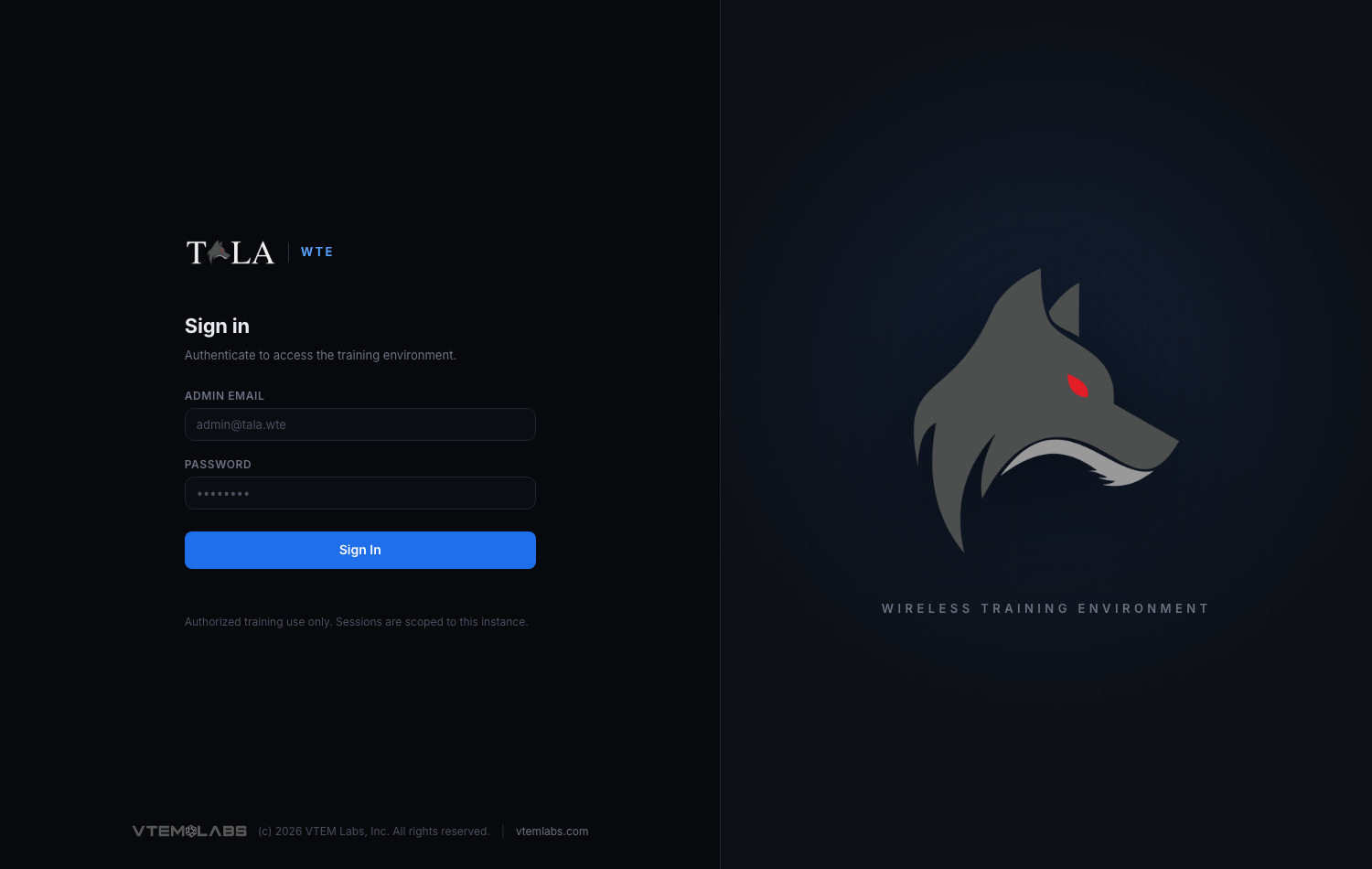
Open the printed URL over HTTPS:
https://<host>:8443/
Port 80 redirects to 8443. The certificate is self-signed, so your browser will warn about it on the first visit; accept it to continue (the console is meant for an isolated lab, not the public internet).
On a fresh install the console shows a setup wizard, not a login. Tala WTE never auto-provisions an administrator and never prints credentials. The wizard asks for:
- An admin email and a password (minimum 10 characters).
- The license acknowledgment (enforced server-side; the full license is viewable from that screen).
Create the account from the wizard. It is one-shot: once the admin exists, the setup screen becomes the normal sign-in, and the wizard hard-refuses to create a second admin.